Exercise Workbook for Beginning AutoCAD 2005

Use this easy-to-follow, self-study guide to learn the basics of AutoCAD through step-by-step lessons and non-intimidating exercises.
 TABLE OF CONTENTS
 After you adjust the scale of a viewport sometimes the drawing, within the viewport frame, is not placed as you would like it. If you use Zoom / All, the scale will not be correct. And then you would need to re-adjust the scale.
This where the PAN command comes in handy. The PAN command will allow you to move the drawing around , within the viewport, without effecting the adjusted scale.
| Note | Do not use the MOVE command. You do not want to actually move the original drawing. You only want to slide the viewport image, of the original drawing, around within the viewport. |
This will make more sense after you have completed Exercise 29, step 3.
How to use the PAN command to move a drawing within a viewport.
Activate the viewport. (Double click inside viewport)
Select the PAN command using one of the following:
TYPE = P
PULLDOWN = VIEW / PAN / REALTIME
TOOLBAR = STANDARD 
Place the cursor inside the viewport and hold the left mouse button down while moving the cursor. (Click and drag) When the drawing is in place release the mouse button.
Lock the viewport.
Now you can use the Zoom commands and it will not effect the adjusted scale.
| Note | You may set the "wheel" on your wheel mouse to Pan when you press it. Refer to page Intro-10 for the Mbuttonpan settings. |
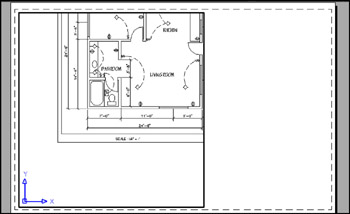
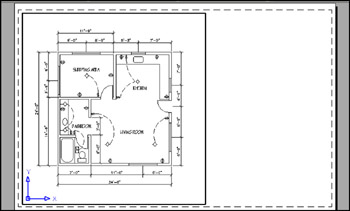
Example of Before and After panning.
BEFORE PANNING
AFTER PANNING
This exercise will...