Exercise Workbook for Beginning AutoCAD 2005

Use this easy-to-follow, self-study guide to learn the basics of AutoCAD through step-by-step lessons and non-intimidating exercises.
 TABLE OF CONTENTS
 The BREAK command allows you to break a space in an object, break the end off an object or split a line in two. I think of it as taking a bite out of an object.
There are 4 break methods, as described below.
You may select the BREAK command by using one of the following:
TYPING = BR
PULLDOWN = MODIFY / BREAK
TOOLBAR = MODIFY 
METHOD 1
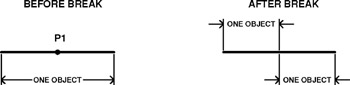
How to break one object into two separate objects with no visible space in between. (Use this method if the location of the break is not important)
Draw a line.
Select the BREAK command using one of the methods listed above.
_break Select object: pick the break location (P1) by clicking on it.
Specify second break point or [First point]: type @
(This will duplicate the last point.)
Now if you click on one end of the line you will see that there are 2 lines instead of just one.
METHOD 2
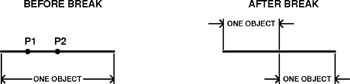
This method is the same as method 1, however, use this method if the location of the break is very specific.
Select the BREAK command using one of the methods listed above.
_break Select objects: select the object to break (P1).
Specify second break point or [First point]: type F
Specify first break point: select break location (P2) accurately.
Specify second break point: type @
Method 2 can also be accomplished easily by selecting the "Break at point" icon.  But...