Exercise Workbook for Beginning AutoCAD 2005

Use this easy-to-follow, self-study guide to learn the basics of AutoCAD through step-by-step lessons and non-intimidating exercises.
 TABLE OF CONTENTS
 Sometimes you need to modify the dimension text. You may add a symbol, a note or even change the text of an existing dimension. There are 2 methods.
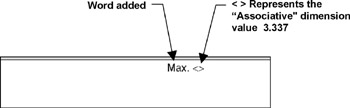
Example: Add the word "Max." to the existing dimension.
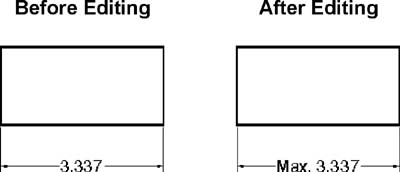
Method 1.
Double click on the dimension that you want to change. The Properties Palette will appear.
Scroll down to Text / Text override
(Notice that the actual measurement is directly above it.)
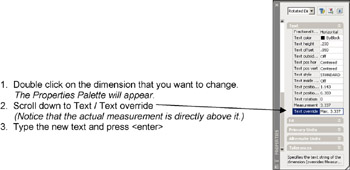
Type the new text and press
| Important | If you use this method the dimension is no longer Associative. |
Method 2.
Type on the Command line: DDEDIT
Select the dimension you want to edit. (Only one at a time)
The "Multiline Text Editor" will appear.
If the dimension is Associative, it will display the dimension text as a symbol <>. Do not erase this symbol. You can add text before or after the symbol.
Select the OK button.
| Important | The dimension remains Associative. |
Sometimes dimensions are too close and you would like to stagger the text or you need to move an entire dimension to a new location, such as the examples below.
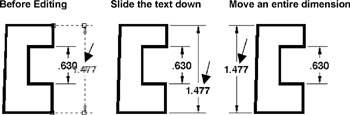
Editing the position is easy.
Select the dimension that you want to change. (Grips will appear)
Select the middle grip. (It will become red and active, hot)
Move the cursor and the dimension will respond.
Press the left mouse button to place the dimension in the new location.
ADDITIONAL EDITING OPTIONS USING THE SHORTCUT MENU
Select the...