Exercise Workbook for Advanced AutoCAD 2005

Lesson 2

HOW TO CUSTOMIZE A TOOLBAR

You have probably noticed that you are using some toolbar buttons more often than others and some you don t use at all. AutoCAD allows you to customize your toolbars for quick access. You can delete infrequently used buttons, add buttons or create an entirely new toolbar and fill it with buttons of your choice. It is not difficult.

Note: You may also create a tool palette . This will be discussed In Lesson 10.

HOW TO MODIFY A TOOLBAR

  1. Select View/Toolbars

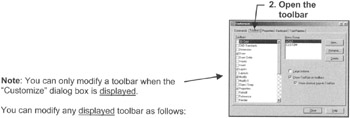
  2. Make sure the toolbar you want to modify is open.

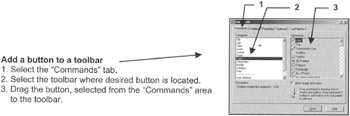
You can modify any displayed toolbar as follows:

Reposition a button on a toolbar

Place the cursor on the tool button, press and hold down the left mouse button. Now slide the cursor to the new location on the toolbar. (You will see a black vertical bar as you move the cursor) When the black bar is in the correct location, release the mouse button. (This is called Click and drag )

Remove a button from a toolbar

Click and drag the button off the toolbar then release mouse button.

Copy a button from one toolbar to another

Hold the Ctrl key down while dragging the desired button from one toolbar to another.

HOW TO CREATE A NEW TOOLBAR

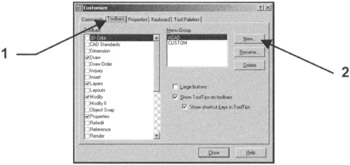
You first have to create an empty toolbar and then drag buttons onto the new toolbar.

  1. Select the Toolbars tab.

  2. Select the New button.

The following warning will appear. Select...

UNLIMITED FREE
ACCESS
TO THE WORLD'S BEST IDEAS

SUBMIT
Already a GlobalSpec user? Log in.

This is embarrasing...

An error occurred while processing the form. Please try again in a few minutes.

Customize Your GlobalSpec Experience

Category: Computer Mice and Pointing Devices
Finish!
Privacy Policy

This is embarrasing...

An error occurred while processing the form. Please try again in a few minutes.