Exercise Workbook for Advanced AutoCAD 2005

Lesson 8

LET S REVIEW HOW TO CREATE A BLOCK

You learned how to create Blocks, in Lesson 28, in the Exercise Workbook for Beginning AutoCAD 2004. Because Blocks are so useful, let s review How to create a block one more time. Then we will learn how to add Attributes to those blocks to make them even more useful.

CREATING A BLOCK

  1. First draw the objects that will be converted into a Block.

    (Refer to page 8 3 Color and Linetype )

  2. Select the BMAKE command using one of the following:

    • TYPE=B

    • PULLDOWN=DRAW/BLOCK/MAKE

    • TOOLBAR =DRAW

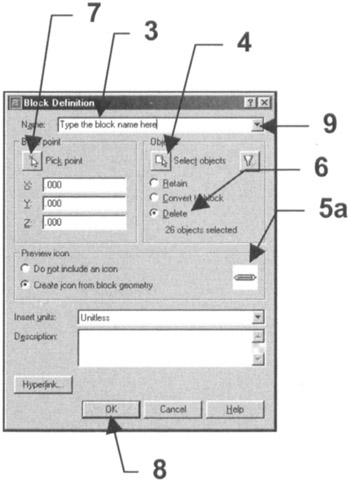
      (The dialog box on the right will appear.)

  3. Enter the New Block name in the Name box.

  4. Select the SELECT OBJECTS button.

    The Block Definition box will disappear and you will return temporarily to the drawing.

  5. Select the objects you want in the block, then press .

    The Block Definition box will reappear and the objects you selected should be illustrated in the Preview Icon area.

  6. Select Delete. (Refer to 8 3 for definitions.)

  7. Select the Pick Point button. (Or you may type the X and Y coordinates.)

    The Block Definition box will disappear again and you will return temporarily to the drawing.

    Select the location where you would like the insertion point for the Block. Later, when you insert this block, it will appear on the screen attached to the cursor at this insertion point. Usually this point is the CENTER, MIDPOINT or ENDPOINT of an object.

  8. Select the OK button.

    The objects...

UNLIMITED FREE
ACCESS
TO THE WORLD'S BEST IDEAS

SUBMIT
Already a GlobalSpec user? Log in.

This is embarrasing...

An error occurred while processing the form. Please try again in a few minutes.

Customize Your GlobalSpec Experience

Category: Pillow Block Bearings
Finish!
Privacy Policy

This is embarrasing...

An error occurred while processing the form. Please try again in a few minutes.