Exercise Workbook for Advanced AutoCAD 2005

Lesson 21

Overview

TABLES

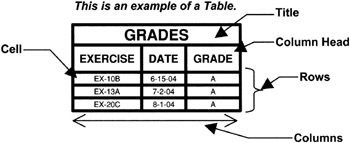
A Table is an object that contains data organized within columns and rows. AutoCAD s Table feature allows you to modify an existing Table Style or create your own Table Style and then enter text or even a block into the table cells. This is a very simple to use feature with many options.

HOW TO CREATE A TABLE.

  1. Select the Table Style command using one of the following:

    TYPE=tablestyle

    PULLDOWN=FORMAT/TABLE STYLE

    TOOLBAR=FORMAT

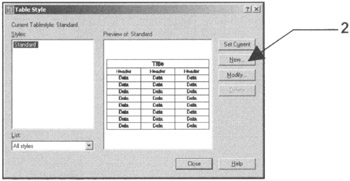
    The following dialog box will appear

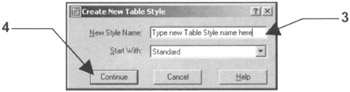
  2. Select the NEW button. The following dialog will appear.

  3. Enter the new Table Style name. Note: When you create a new table style you always Start With an existing style and you specify the differences.

  4. Select the Continue button.

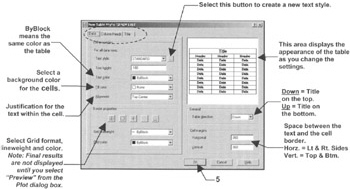
    The following dialog box will appear.

    Notice the 3 tabs in the upper left.

    The information within each of these tabs is the same except for the following:

    The check mark indicates that you want a Header for the Column and/or a Title Header . If you do not want one or both, remove the check mark. The setting boxes on that tab will turn gray and you will not be required to enter information.

  5. Select the OK button after you have completed all the settings necessary shown above.

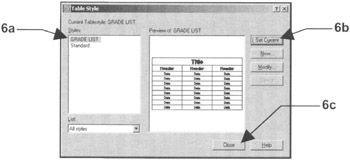
  6. Select the (a) New Table Style and select the (b) Set Current button and (c) close.

HOW TO INSERT A TABLE

  1. Select DRAW/TABLE.

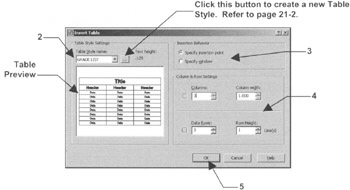
    The following dialog box will appear.

  2. Select the Table Style...

UNLIMITED FREE
ACCESS
TO THE WORLD'S BEST IDEAS

SUBMIT
Already a GlobalSpec user? Log in.

This is embarrasing...

An error occurred while processing the form. Please try again in a few minutes.

Customize Your GlobalSpec Experience

Category: Strain Reliefs
Finish!
Privacy Policy

This is embarrasing...

An error occurred while processing the form. Please try again in a few minutes.