Exercise Workbook for Advanced AutoCAD 2005

Lesson 20

PLOTTING MULTIPLE VIEWS

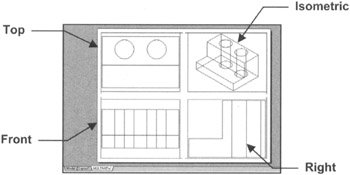
AutoCAD has many commands to create a multiview layout, such as SOLVIEW, SOLDRAW, SOFPROF and DXB plot. You may consider researching these, but in this lesson I will show you 5 quick and simple steps to develop a multiview layout to use for plotting.

STEP 1. SELECTING THE PLOTTER/PRINTER AND PAPER SIZE.

  1. Open a solid model drawing that you would like to print. (Example: 3D Helper.dwg)

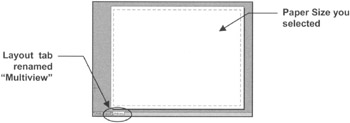
  2. Select an unused Layout tab. (If all Layout tabs have been used, create a new Layout tab.)

  3. Create a new Page Setup named Multiview . (Refer to page 3 7)

  4. Select Plotter/Printer , Plot Style table and Paper Size . (Refer to page 3 8)

  5. Rename the Layout tab to Multiview . (Refer to page 3 9.)

STEP 2. CREATE VIEWPORTS

  1. Select VIEW/VIEWPORTS/NEW VIEWPORTS

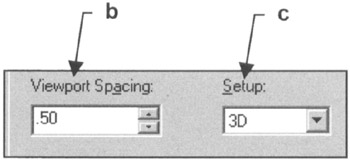
    1. Select FOUR EQUAL

    2. Set Viewport Spacing to: .50

    3. Set Setup to: 3D

    4. Select OK

    5. Specify first corner or [Fit] :

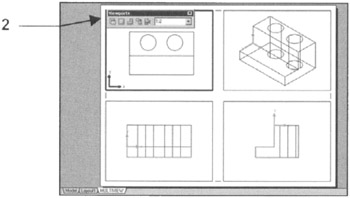
STEP 3. ADJUST VIEWPORT SCALE, PAN and LOCK

  1. Open the VIEWPORT TOOLBAR and adjust the scale of each Viewport.

  2. Pan the object in each viewport to the desired location. (Do not use Zoom)

  3. LOCK each Viewport.

STEP 4. SELECT THE PLOT APPEARANCE

  1. Make sure you are in Paperspace.

  2. Select ALL the viewports. (Use crossing window.)

  3. Right click and select PROPERTIES from the menu.

  4. Find the MISC category and select SHADE PLOT=HIDDEN

  5. Press the ESC key and close the Properties Palette.

STEP 5. PLOT (Refer to pg. 3 13 or 3 30)

  1. Select FILE/PLOT.

  2. Select Printer/Plotter.

  3. Select Paper Size.

  4. Select

UNLIMITED FREE
ACCESS
TO THE WORLD'S BEST IDEAS

SUBMIT
Already a GlobalSpec user? Log in.

This is embarrasing...

An error occurred while processing the form. Please try again in a few minutes.

Customize Your GlobalSpec Experience

Category: Vacuum Viewports and Access Doors
Finish!
Privacy Policy

This is embarrasing...

An error occurred while processing the form. Please try again in a few minutes.