Exercise Workbook for Advanced AutoCAD 2005

After a block with attributes has been inserted into a drawing you may want to edit it. AutoCAD has many ways to edit these attributes.
| Note | Sorry LT users, you can only use the ATTEDIT command shown on page 9 4 to edit the attribute text |
Select the BLOCK ATTRIBUTE MANAGER command using one of the following:
TYPE=BATTMAN
PULLDOWN=MODIFY/OBJECT/ATTRIBUTE/BLOCK ATTRIBUTE MANAGER
TOOLBAR=MODIFY II ![]()
Select the block that you want to edit.
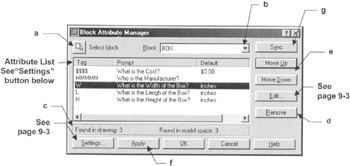
The following dialog box will appear.

Select Block Allows you to select another block takes you back to the drawing so you can select another block to edit.
Block down arrow Allows you to select another block from a list.
Found lists how many of the selected block were found in the drawing and how many are in the space you are currently in. (You must select the model tab or Layout tab . It will not find model space attributes if you are not in model space.)
Remove Allows you to remove an Attribute from a block. (See Apply and Sync below)
Move Up and Down Allows you to put the prompts in the order you prefer.
Apply After you have made all the changes, select the Apply button to update the attributes. (The Apply button will be gray if you have not made a change.)
Sync If you explode a block, make a change and redefine the block, Sync allows you to update all the previous blocks with the same name.
SETTINGS ![]()
The Settings dialog box controls which...