DESIGNCENTER
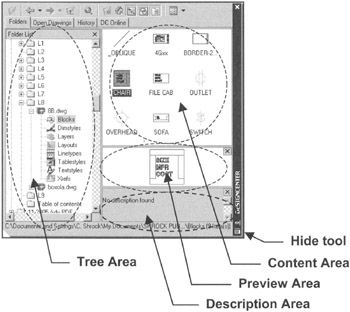
The AutoCAD DesignCenter allows you to find, preview and drag and drop Blocks, Dimstyles, Textstyles, Layers, Layouts and more, from the DesignCenter to an open drawing. You can actually get into a previously saved drawing file and copy any of the items listed above into an open drawing.
Opening the DesignCenter palette
To open the DesignCenter palette select one of the following:
TYPE=DC or Ctrl+2
PULLDOWN=TOOLS/DesignCenter
TOOLBAR=STANDARD 
How to:
Resizing You can change the width and height. Rest the cursor on an edge until the pointer changes to a double ended arrow. Click and drag to desired size.
Dock Click the title bar, then drag it to either side of the drawing window.
Hide You can hide the DesignCenter palette using the Auto-hide option. Click on the properties button  and select Auto-hide . When Auto-hide is ON, the palette is hidden, only the title bar is visible. The palette reappears when you place the cursor on the title bar.
VIEWING TABS
At the top of the palette there are 4 tabs that allow you to change the view.
They are: Folders, Open Drawings, History and DC Online.
Folders tab Displays the Directories and files similar to Windows Explorer. You can navigate and locate content anywhere on your system.
Open Drawings tab Displays all open drawings. Allows you to select content from an open drawing and insert it into another open drawing. (Note: the target drawing must be the active drawing)
History tab Displays the last 20 file...


 TABLE OF CONTENTS