Exercise Workbook for Advanced AutoCAD 2005

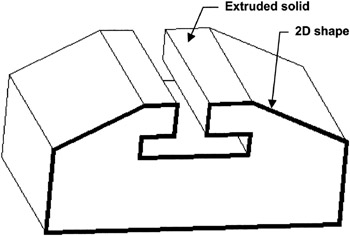
AutoCAD s primitives are helpful in constructing 3D solids quickly. But what if you want to create a solid object that has a more complex shape, such as the one shown here.

To create the solid shown above you first need to draw a closed 2D shape and then EXTRUDE it.
The EXTRUDE command allows you to take a 2D shape and extrude it into a solid. It extrudes along the Z-Axis. Extrusions can be created along a straight line or along a curved path. The extrusion may also have a taper.
Only closed 2D shapes such as Circle, Polygon, Rectangle, Ellipse, Donuts, closed Polylines and Regions can be extruded. (Splines can also be extruded but we are not discussing those in this workbook)
There are 4 methods for extruding a 2D shape:
Perpendicular to the 2D shape with straight sides.
Perpendicular to the 2D shape with tapered side.
Along a Path
Extrude a Region.
HOW TO SELECT THE EXTRUDE COMMAND
TYPE=EXT or EXTRUDE
PULLDOWN=DRAW/SOLIDS/EXTRUDE
TOOLBAR=SOLIDS ![]()
Select the Model tab and SE Isometric view.
Draw a closed 2D shape, such as a rectangle, on the XY plane.
Select the EXTRUDE command using one of the methods shown on page 16 2.
Select the objects: select the objects to extrude
Select the objects:
Specify height of extrusion or [Path]: type the height
(Note: a positive value extrudes above the XY plane and negative extrudes below the XY plane,