Exercise Workbook for Advanced AutoCAD 2005

The following instructions will guide you through creating a Master decimal setup drawing. This setup drawing is very similar to the setup drawing you may have made while using the Beginning workbook but create it anyway. In addition to giving you more practice, there are some minor differences in the settings, layers and styles.
NEW SETTINGS
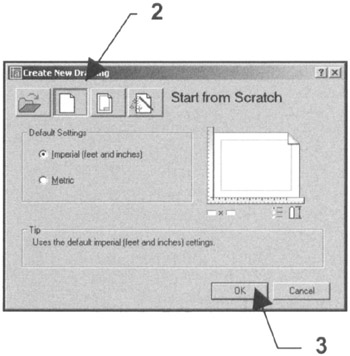
Begin your drawing without a template as follows:
Select FILE/NEW .
Select START FROM SCRATCH Box.
Select OK .
Your screen should be blank, no grids and the current layer is 0.

Set drawing specifications as follows:
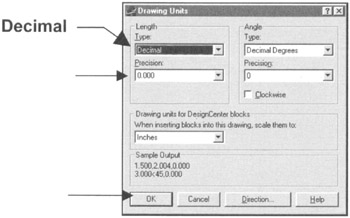
Set UNITS of measurement.
Use FORMAT/UNITS and change the settings as shown.
Then select OK.

Set DRAWING LIMITS (size of drawing area).
USE FORMAT/DRAWING LIMITS.
Lower left corner=0.000,0.000
Upper right corner=17, 11
Use VIEW/ZOOM/ ALL to generate the new limits.
Set your Grids to ON to display the paper size.
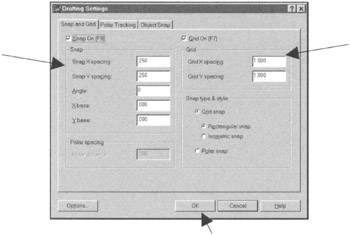
Set SNAP AND GRID .
Use TOOLS/DRAFTING SETTINGS.
Change the settings as shown below and then select OK.

Set PICK BOX size (your preference).
See page 2 12 E-1 for instructions.
NEW LAYERS
Create new layers.
First Load the linetypes listed below. (See page 26 4 Beg. Workbook)
CENTER2
HIDDEN
PHANTOM2
Assign names, colors, linetypes and plotability. (See page 26 3 Beg. Workbook)
| NAME | COLOR | LINETYPE | LWT | PLOT |
|---|---|---|---|---|
| BORDER | RED | CONTINUOUS | .039 | YES |
| CENTER | CYAN | CENTER2 | Default | YES |
| CONSTRUCTION | WHITE | CONTINUOUS | Default | NO |
| DIMENSION | BLUE | CONTINUOUS | Default | YES |
| HATCH | GREEN | CONTINUOUS | Default | YES |
| HIDDEN | MAGENTA |