Exercise Workbook for Advanced AutoCAD 2005

Lesson 6

ISOMETRIC DRAWINGS

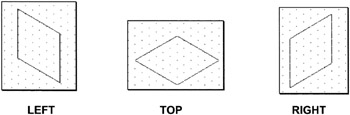
An ISOMETRIC drawing is a pictorial drawing. It is primarily used to aid in visualizing an object. There are 3 faces shown in one view. They are: Top, Right and Left. AutoCAD provides you with some help constructing an isometric drawing but you will be doing most of the work. The following are instructions on the isometric aids AutoCAD provides. Note: This is not 3D. Refer the Introduction to 3D section in this workbook.

ISOMETRIC SNAP AND GRID

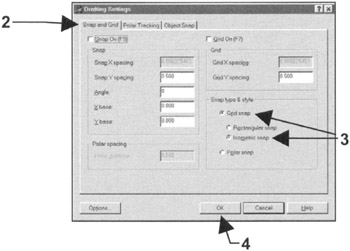
  1. Select TOOLS/DRAFTING SETTINGS or right click on the Grid button then select Settings from the short cut menu.

    The following dialog box should appear.

  2. Select the Snap and Grid tab.

  3. Select Grid snap and Isometric snap .

  4. Select OK.

Note

The Grid pattern and Cursor have changed. The grids are on a 30 degree angle. The cursor s horizontal crosshair is now on a 30 degree angle also. This indicates that the LEFT ISOPLANE is displayed.

ISOPLANES

There are 3 isoplanes, Left, Top and Right. You can toggle to each one by pressing the F5 key. When drawing the left side of an object you should display the Left Isoplane. When drawing the Top of an object you should display the Top Isoplane. When drawing the Right side of an object you should display the Right Isoplane.

  1. Grid, Snap and Ortho should be ON.

  2. Now try drawing the 3 3 3 cube below using Line .

    1. Start with the Left Isoplane. ( You may use DIRECT DISTANCE...

UNLIMITED FREE
ACCESS
TO THE WORLD'S BEST IDEAS

SUBMIT
Already a GlobalSpec user? Log in.

This is embarrasing...

An error occurred while processing the form. Please try again in a few minutes.

Customize Your GlobalSpec Experience

Category: Computer Mice and Pointing Devices
Finish!
Privacy Policy

This is embarrasing...

An error occurred while processing the form. Please try again in a few minutes.