Exercise Workbook for Beginning AutoCAD 2007
Lesson 2

LEARNING OBJECTIVES

After completing this lesson, you will be able to:

  1. Create a template.

  2. Understand the AutoCAD Window.

  3. Understand the use of the function keys.

  4. Select commands using the Pull-down Menu Bar, Toolbars or by typing at the Command Line.

  5. Recognize a dialog box.

  6. Open, Close and Move a toolbar.

  7. Draw, Erase and Select Lines.

  8. Clear the screen.

  9. Save a drawing.

  10. Open an existing drawing.

  11. Exit AutoCAD.

CREATE A TEMPLATE

The first item on the learning agenda is how to create a template file from the Workbook Helper.dwg . Go to the website: http://www.industrialpress.com, select AutoCAD under Books by Top Subject , to download the files for the 2007 workbook and save them to your Desktop .

Now we will create a template. This will be a very easy task.

  1. Start AutoCAD, if you haven t already. (Refer to page 1-7)

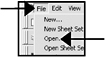
  2. Select File / Open

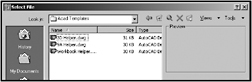
  3. Select the Desktop directory and locate the downloaded the files mentioned above.

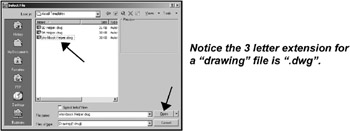
  4. Select the file Workbook Helper.dwg and then Open button.

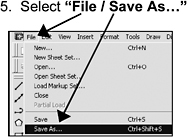
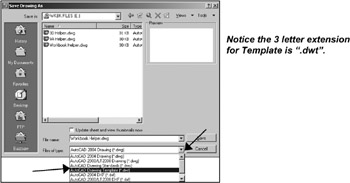
  1. Select the Files of type: down arrow ? to display different saving formats. Select AutoCAD Drawing Template (*.dwt) .

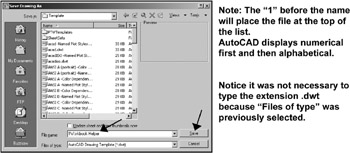
    A list of all the AutoCAD templates will appear. (Note: Your list may be different)

  2. Type the new name 1Workbook Helper in the File name: box and then select the Save button.

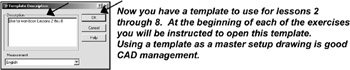
  3. Type a description and the select the OK button.

OPENING A TEMPLATE

UNLIMITED FREE
ACCESS
TO THE WORLD'S BEST IDEAS

SUBMIT
Already a GlobalSpec user? Log in.

This is embarrasing...

An error occurred while processing the form. Please try again in a few minutes.

Customize Your GlobalSpec Experience

Category: Additive Manufacturing Software
Finish!
Privacy Policy

This is embarrasing...

An error occurred while processing the form. Please try again in a few minutes.