Exercise Workbook for Beginning AutoCAD 2007
Lesson 15

LEARNING OBJECTIVES

After completing this lesson, you will be able to:

  1. Cross hatch a section view.

  2. Add Gradient filled areas.

  3. Solidly fill an area.

  4. Make changes to a hatch set already in the drawing.

HATCH

The BHATCH command is used to create hatch lines for section views or filling areas with specific patterns.

To draw hatch you must start with a closed boundary. A closed boundary is an area completely enclosed by objects. A rectangle would be a closed boundary. You simply pick inside the closed boundary. BHATCH locates the area and automatically creates a temporary polyline around the outline of the hatch area. After the hatch lines are drawn in the area, the temporary polyline is automatically deleted. (Polylines are discussed in Lesson 23)

Note: A Hatch set is one object. If you explode it, it will return to many objects.

  1. Select the BHATCH command using one of the following:

    • TYPE = BH

    • PULLDOWN = DRAW / HATCH

    • TOOLBAR = DRAW

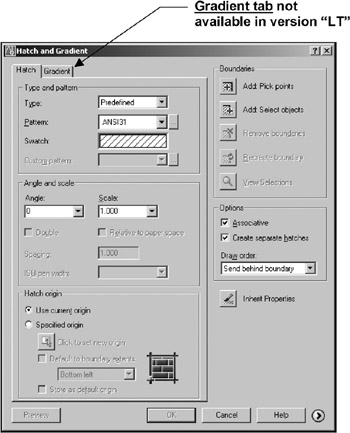
    • The following dialog box appears:

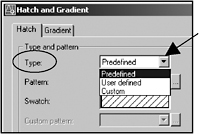
  1. Select the hatch TYPE
    Select one of the following:
    PREDEFINED, USER DEFINED or CUSTOM
    (Description of each is listed below. )

    1. PREDEFINED
      AutoCAD has many predefined hatch patterns. These patterns are stored in the acad. pat and acadiso. pat files. (You may also purchase patterns from other software companies. )

      Note

      Using Hatch patterns will greatly increase the size of the drawing file. So use them conservatively.

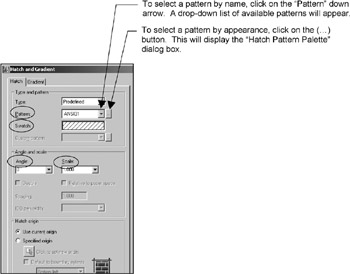
      Predefined Pattern Properties

      Pattern
      This box displays the...

UNLIMITED FREE
ACCESS
TO THE WORLD'S BEST IDEAS

SUBMIT
Already a GlobalSpec user? Log in.

This is embarrasing...

An error occurred while processing the form. Please try again in a few minutes.

Customize Your GlobalSpec Experience

Category: Honing, Lapping, and Super-finishing Machines
Finish!
Privacy Policy

This is embarrasing...

An error occurred while processing the form. Please try again in a few minutes.