Exercise Workbook for Beginning AutoCAD 2007
Lesson 6

LEARNING OBJECTIVES

After completing this lesson, you will be able to:

  1. Use the 4 Break command options.

  2. Trim an object to a cutting edge.

  3. Extend an object to a boundary.

  4. Move an object(s) to a new location.

  5. Explode objects into their primitive entities.

BREAK

The BREAK command allows you to break a space in an object, break the end off an object or split a line in two. I think of it as taking a bite out of an object. There are 4 break methods, as described below.

You may select the BREAK command by using one of the following:

  • TYPING = BR

  • PULLDOWN = MODIFY / BREAK

  • TOOLBAR = MODIFY

METHOD 1

How to break one object into two separate objects with no visible space in between. (Use this method if the location of the break is not important)

  1. Draw a line.

  2. Select the BREAK command using one of the methods listed above.

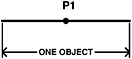
  3. _break Select object: pick the break location (P1) by clicking on it.

  4. Specify second break point or [First point]: type @ . (This will duplicate the last point. )

  5. Now if you click on one end of the line you will see that there are 2 lines instead of just one.

BEFORE BREAK

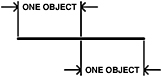
AFTER BREAK

METHOD 2

This method is the same as method 1, however, use this method if the location of the break is very specific.

  1. Select the BREAK command using one of the methods listed above.

UNLIMITED FREE
ACCESS
TO THE WORLD'S BEST IDEAS

SUBMIT
Already a GlobalSpec user? Log in.

This is embarrasing...

An error occurred while processing the form. Please try again in a few minutes.

Customize Your GlobalSpec Experience

Category: Limit Switches
Finish!
Privacy Policy

This is embarrasing...

An error occurred while processing the form. Please try again in a few minutes.