Exercise Workbook for Beginning AutoCAD 2007
After completing this lesson, you will be able to:
Dimension objects that are on an angle.
Draw a Leader.
Draw a line with an arrow (no text)
Add symbols such as: diameter, plus or minus and degree to text.
Pre-assign a prefix or suffix to a dimension.
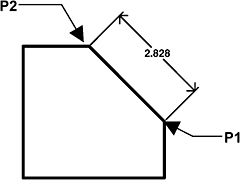
The ALIGNED dimension command aligns the dimension with the angle of the object that you are dimensioning. The process is the same as Linear dimensioning. It requires two extension line origins and placement of text location. (Example below)
Select the ALIGNED command using one of the following:
TYPE = DIMALIGNED or DIMALI or DAL
PULLDOWN = DIMENSION / ALIGNED
TOOLBAR = DIMENSION ![]()
Command: _dimaligned
Specify first extension line origin or
Specify second extension line origin: select the second extension line origin (P2)
Specify dimension line location or [Mtext/Text/Angle]: place dimension text location
Dimension text = the dimension value will appear here

The LEADER command is primarily used to add a note to an object. A Leader s appearance is very similar to a Radial dimension but a Leader should not to be used for Radial dimensioning. A Leader allows you to type a note at the end of the hook. (Note: Leader and Qleader are the same command)
If associative dimensioning is turned on with DIMASSOC, the leader start point can be associated with a location on an object. If the object is relocated,...