Exercise Workbook for Beginning AutoCAD 2007
Lesson 18

LEARNING OBJECTIVES

After completing this lesson, you will be able to:

  1. Add Diameter, Radial and Angular dimensions to your drawing.

  2. Draw Center Marks.

  3. Control the size and appearance of the Center Marks.

  4. Understand the need for Sub-Styles.

  5. Create a Sub-Style.

RADIAL DIMENSIONING

DIAMETER DIMENSIONING

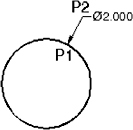
The DIAMETER dimensioning command should be used when dimensioning circles and arcs of more than 180 degrees.

  1. Select the Dimension / Diameter command or .

    Command: _dimdiameter

  2. Select arc or circle: click on the arc or circle (P1). Location is not important; do not use object snap.

    Dimension text = the diameter will be displayed here.

  3. Specify dimension line location or [Mtext/Text/Angle]: place dimension text location (P2).

If you would like to FLIP the direction of the arrowhead:

  1. Select the dimension

  2. Press the right mouse button.

  3. Select Flip Arrow from the menu .

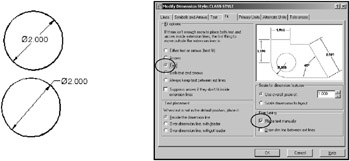
If you would like your Diameter dimensions to appear as shown in the two examples above, you must change the Fit Options and Fine Tuning in the Fit tab in your Dimension Style.

RADIUS DIMENSIONING

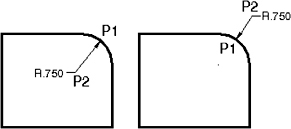
The RADIUS dimensioning command should be used when dimensioning arcs of LESS than 180 degrees.

  1. Select the Dimension / Radius command or

    Command: _dimradius

  2. Select arc or circle: click on the arc (P1). Location is not important, do not use snap.

    Dimension text = the radius will be displayed here

  3. Specify dimension line location or [Mtext/Text/Angle]: place dim text location (P2)

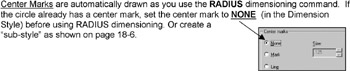
If you would like...

UNLIMITED FREE
ACCESS
TO THE WORLD'S BEST IDEAS

SUBMIT
Already a GlobalSpec user? Log in.

This is embarrasing...

An error occurred while processing the form. Please try again in a few minutes.

Customize Your GlobalSpec Experience

Category: Super Precision and Spindle Bearings
Finish!
Privacy Policy

This is embarrasing...

An error occurred while processing the form. Please try again in a few minutes.