Exercise Workbook for Beginning AutoCAD 2007
Lesson 17

LEARNING OBJECTIVES

After completing this lesson, you will be able to:

  1. Edit Dimension text values

  2. Edit the Dimension position.

  3. Modify an entire Dimension Style.

  4. Override a Dimension Style.

  5. Edit a Dimension using Properties Palette.

EDITING DIMENSION TEXT VALUES

Sometimes you need to modify the dimension value text. You may add a symbol, a note or even change the text of an existing dimension. The following describes 2 methods.

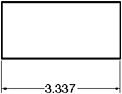
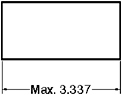
Example: Add the word Max. to the existing dimension value text.

Before Editing

After Editing

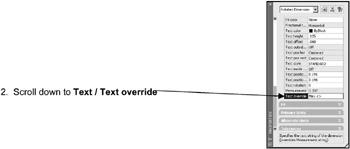
Method 1 (Properties Palette).

  1. Double click on the dimension that you want to change.

    The Properties Palette will appea r.

  • (Notice that the actual measurement is directly above it. )

  1. Type the new text (Max) and < > and press (< > represents the associative text value)

Important

If you do not use < > the dimension will no longer be Associative.

Method 2 (ddedit).

  1. Type on the Command line: ed (This is the ddedit command)

  2. Select the dimension you want to edit.

  3. The In-Place Text Editor will appear.

    • Associative Dimension

    • If the dimension is Associative the dimension text will appear highlighted.

    • You may add text in front or behind the dimension text and it will remain Associative. Be careful not to disturb the dimension value text.

    • Non Associative Dimension

    • If the dimension value has been changed or exploded it will appear with a gray background and is not Associative.

UNLIMITED FREE
ACCESS
TO THE WORLD'S BEST IDEAS

SUBMIT
Already a GlobalSpec user? Log in.

This is embarrasing...

An error occurred while processing the form. Please try again in a few minutes.

Customize Your GlobalSpec Experience

Category: Content Management Software
Finish!
Privacy Policy

This is embarrasing...

An error occurred while processing the form. Please try again in a few minutes.