Exercise Workbook for Beginning AutoCAD 2007
Lesson 14

LEARNING OBJECTIVES

After completing this lesson, you will be able to:

  1. Make an existing object larger or smaller proportionately.

  2. Stretch or compress an existing object.

  3. Rotate an existing object to a specific angle.

SCALE

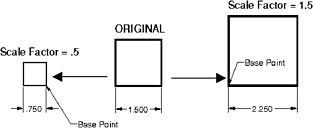
The SCALE command is used to make objects larger or smaller proportionately. You may scale using a scale factor or a reference length. You must also specify a base point. Think of the base point as a stationary point from which the objects scale. It does not move.

  1. Select the SCALE command using one of the following:

    • TYPE = SCALE

    • PULLDOWN = MODIFY / SCALE

    • TOOLBAR = MODIFY

SCALE FACTOR
Command: _scale

  1. Select objects: select the object(s) to be scaled

  2. Select objects: select more object(s) or to stop

  3. Specify base point: select the stationary point on the object

  4. Specify scale factor or [Copy/Reference]: type the scale factor

If the scale factor is greater than 1, the objects will increase in size.
If the scale factor is less than 1, the objects will decrease in size.

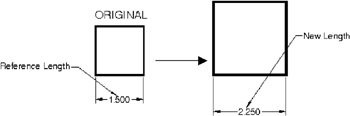
REFERENCE
Command: _scale

  1. Select objects: select the object(s) to be scaled

  2. Select objects: select more object(s) or to stop

  3. Specify base point: select the stationary point on the object

  4. Specify scale factor or [Copy/Reference]: select Reference

  5. Specify reference length <1>: specify a reference length

  6. Specify new length: specify the new length

COPY creates a duplicate of the selected object. The duplicate is directly on top of the original. The duplicate will be scaled. The...

UNLIMITED FREE
ACCESS
TO THE WORLD'S BEST IDEAS

SUBMIT
Already a GlobalSpec user? Log in.

This is embarrasing...

An error occurred while processing the form. Please try again in a few minutes.

Customize Your GlobalSpec Experience

Category: Scales and Balances
Finish!
Privacy Policy

This is embarrasing...

An error occurred while processing the form. Please try again in a few minutes.