Exercise Workbook for Beginning AutoCAD 2007
Viewports are only used in Paper Space (Layout tab).
Viewports are holes cut into the sheet of paper displayed on the screen.
Viewports are objects. They can be moved, stretched, scaled, copied and erased.
You can have multiple Viewports, and their size and shape can vary.
Note: It is considered good drawing management to create a layer for the Viewport frames to reside on. This will allow you to control them separately; such as setting the viewport layer to No plot so it will not be visible when plotting.
HOW TO CREATE A VIEWPORT
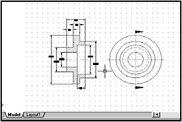
First, create your drawing in Model Space (Model tab) and save it.

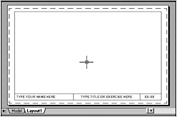
Select the Layout1 tab. (If the Page Setup Manager dialog box appears, select the CLOSE button for now or refer to How to Create a Page setup on page 26-12. )
You are now in Paper Space. Model Space appears to have disappeared, but a blank paper is actually in front of Model Space, preventing you from seeing your drawing. (Your Border, title block and notes will be drawn on this paper in Paper Space. )

Select layer Viewport (You may need to create one, refer to 26-3)
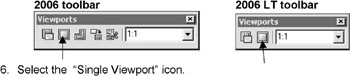
Open the Viewports toolbar (Refer to page 2-9)

Draw the Viewport frame by specifying the location for the first corner and then the opposite corner . (Similar to drawing a Rectangle, but do not use the Rectangle command. )
You should now be able to look through the Paper Space sheet to Model...