Exercise Workbook for Beginning AutoCAD 2007
After completing this lesson, you will be able to:
Create multiple copies in a Rectangular or Circular pattern.
The ARRAY command allows you to make multiple copies in a RECTANGULAR or Circular (POLAR) pattern. The maximum limit of copies per array is 100,000. This limit can be changed but should accommodate most users.
RECTANGULAR ARRAY
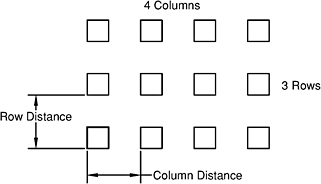
The method allows you to make multiple copies of object(s) in a rectangular pattern. You specify the number of rows (horizontal), columns (vertical) and the offset distance between the rows and columns. The offset distances will be equally spaced.
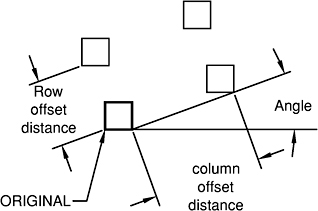
Offset Distance is sometimes tricky to understand. Read this carefully. The offset distance is the distance from a specific location on the original to that same location on the invisible copy. It is not just the space in between the two. Refer to the example below.
To use the rectangular array command you will select the object(s), specify how many rows and columns desired and the offset distance for the rows and the columns.
Step by step instructions on page 13-3 .
Example of Rectangular Array:

Example of Rectangular Array on an angle:
Notice the copies do not rotate. The Angle is only used to establish the placement.

Select the ARRAY command using one of the following:
TYPE = ARRAY
PULLDOWN = MODIFY / ARRAY
TOOLBAR = MODIFY ![]()
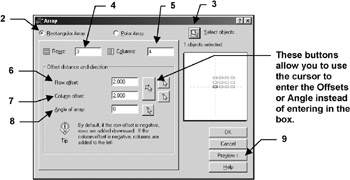
The dialog box shown below will appear.

Select Rectangular Array .
Select the Select Objects