Exercise Workbook for Beginning AutoCAD 2007
The previous page setup instructions were to select the printer and paper size.
Now you need to specify how you want to plot the drawing. You will find the PLOT dialog box almost identical to the Page Setup dialog box.
STEP 1. SPECIFY PLOT SETTINGS
Specifying Plot Settings means:
Verify the Layout name, Plot device and Paper size.
Select what area of the drawing to plot, what scale to use, where to place the drawing on the paper and which plot style table to use.
Select FILE / PLOT.
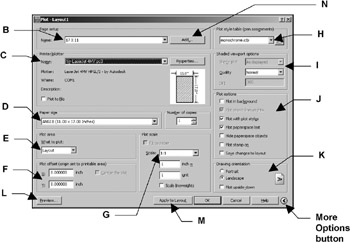
The Plot dialog box shown below should appear.
Select the More Options button (in the lower right corner) if your dialog box does not appear the same as shown below.

Page Setup:
Notice that the current page setup is displayed.
You may select a previously saved page setup from the drop down list.
If you make any changes to the settings, this name will change to
Printer / Plotter:
Verify the Name. All previously configured devices are listed.
If you would like to use your printer, selected it now instead of the Hp4MV shown above.
(If your printer / plotter is not listed, refer to Add a Printer / Plotter Appendix A. )
Paper Size:
Verify the Paper size.
Plot Area:
Select the area to plot. Layout is the default.
Note: If you selected printer HP4MV select Layout . If you selected your printer , use Extents .
| Limits | plots... |