Exercise Workbook for Beginning AutoCAD 2007
After completing this lesson, you will be able to:
Use Multiple Automatic dimensioning.
Edit Multiple dimensions.
Sorry LT users, the information in this lesson is not available within the LT version.
Sorry LT users, this command is not available to you. Skip to Lesson 21 .
Quick Dimension creates multiple dimensions with one command. Quick Dimension can create Continuous, Staggered, Baseline, Ordinate, Radius and Diameter dimensions. ( Ordinate will be discussed in the Advanced workbook) Qdim only works in modelspace. It is not trans-spatial. (Refer to page 27-10)
Select the Quick Dimension command using one of the following:
TYPE = QDIM
PULLDOWN = Dimension/Quick Dimension
TOOLBAR = DIMENSION ![]()
Command: _qdim
Associative dimension priority = Endpoint
Select geometry to dimension
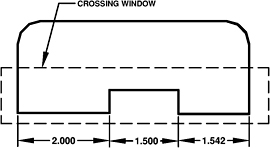
CONTINUOUS
Select the objects to be dimensioned with a crossing window or pick each object
Press
Specify dimension line position, or
[Continuous/Staggered/Baseline/Ordinate/Radius/Diameter/datumPoint/Edit/settings]
Select the location of the dimension line.

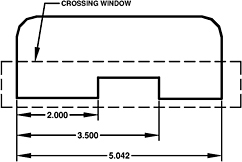
BASELINE
Select the objects to be dimensioned with a crossing window or pick each object.
Press
Specify dimension line position, or
[Continuous/Staggered/Baseline/Ordinate/Radius/Diameter/datumPoint/Edit/settings]
Select the location of the dimension line.

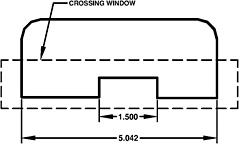
STAGGERED
Select the objects to be dimensioned with a crossing window or pick each object.
Press
Specify dimension line position, or
[Continuous/Staggered/Baseline/Ordinate/Radius/Diameter/datumPoint/Edit/settings]
Select the location of the dimension line.

DIAMETER
Select the objects to be dimensioned with a crossing...