Introduction to AutoCAD 2006 2D and 3D Design

Examples of 3D drawings using the 3D Face tool

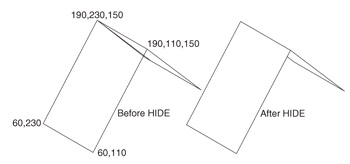
The following two examples demonstrate the construction of 3D faces using the 3D Face tool from the Surfaces toolbar. A 3D face is a triangular or quadrilateral flat (planar) or non-planar surface i.e. a surface with either three or four edges in 3D space. Lines or other surfaces behind 3D faces can be hidden by using the Hide tool.

First example 3D Face tool (Fig. 13.2)

  1. At the command line:

    Command: enter 3dface right-click
    Specify first point or [Invisible]: enter 60,230 right-click
    Specify second point or [Invisible]: enter 60,110 right-click
    Specify third point or [Invisible] : enter 190,110,150 right-click
    Specify fourth point or [Invisible] : enter 190,230,150 right-click
    Specify third point or [Invisible] : right-click
    Command:

  2. Call the Mirror tool and mirror the 3D face about 190,110 and 190,230.

  3. Click on View in the menu bar and on 3D Views in the drop-down menu which appears, and click again on SW Isometric in the sub-menu which comes on screen alongside the drop-down menu.

  4. Click on the Hide tool from the View drop-down menu. After HIDE, part of the right-hand 3D face has been hidden behind the left-hand face.


Fig. 13.2: First example 3D Face tool

Second example 3D Face tool (Fig. 13.3)

It is...

UNLIMITED FREE
ACCESS
TO THE WORLD'S BEST IDEAS

SUBMIT
Already a GlobalSpec user? Log in.

This is embarrasing...

An error occurred while processing the form. Please try again in a few minutes.

Customize Your GlobalSpec Experience

Category: CNC Routers
Finish!
Privacy Policy

This is embarrasing...

An error occurred while processing the form. Please try again in a few minutes.