Planning Using Primavera Project Planner P3 Version 3.1 Revised 2006
You should set up the on-screen presentation so the schedule is easy to read and consistent.
P3 has many good facilities for presenting your information.
This chapter covers the following topics:
Columns
Formatting Bars
Defining Critical Activities
Formatting Summary Bars
Formatting Individual Bars
Screen Colors
Timescale
Sightlines
Row Height
Fonts
Dates
Language
Thousands Separator and
Splitting the Screen.
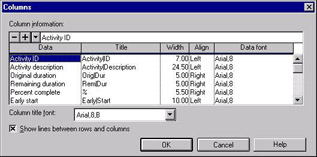
Formatting Columns allows you to nominate the columns you wish to see on the screen and in printouts. To open the Columns form:
select Format, Columns or
press F11 Key or
click the
button on the toolbar.

The columns Data are displayed on the screen from left to right.
Use the
and
under Column information to insert or delete highlighted columns.
The Title allows the displayed title to be customized.
The column titles are formatted using the options in the Column title font box.
Use the pipe symbol (usually uppercase \) to force a new line in the title and thereby putting the title on two lines.
Use Width, Align and Data font to format the data in the columns.
Check the Show lines between rows and columns to display or hide lines between the columns.
Individual columns may be formatted by double clicking on the column title in the bar view.
Activity Columns may be used to display all the resources, predecessor and successor information including the driving relationships which are...