Planning Using Primavera Project Planner P3 Version 3.1 Revised 2006
19.6: Progress Spotlight and Progress Update

19.6 Progress Spotlight and Progress Update

These functions are used together for statusing a schedule.

  • Progress Spotlight enables you to drag the Data Date with the mouse to the next period and

  • Progress Update updates the Percentage Complete, Remaining Duration, Resource Quantity and Resource Cost to reflect what would have happened if the project had proceeded according to schedule.

You have the option of statusing all the activities or some of them. If you wish to status just some activities then select these activities before opening the Update Progress form.

There are two methods of setting the new data date:

  • Use Progress Spotlight to drag the Data Date line with the mouse to the next end of period or

  • Set the new Data Date in the Progress Update form.

19.6.1 Progress Spotlight

To use Progress Spotlight by dragging the Data Date:

  • Set the Timescale to be compatible with your Update Periods.

  • Place the mouse arrow over the Data Date line and it will change to the icon .

  • Right click the mouse and drag the date to the end of your next period.

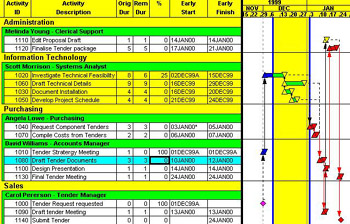
  • The screen will look like the picture below. (Note the activities to be updated are highlighted).

To use Progress Spotlight by selecting View, Progress Spotlight:

  • Set the Timescale to be the same as your Update Periods. If you are statusing weekly then set the time period to weeks in the Timescale form.

  • Select View,

UNLIMITED FREE
ACCESS
TO THE WORLD'S BEST IDEAS

SUBMIT
Already a GlobalSpec user? Log in.

This is embarrasing...

An error occurred while processing the form. Please try again in a few minutes.

Customize Your GlobalSpec Experience

Category: Computer Mice and Pointing Devices
Finish!
Privacy Policy

This is embarrasing...

An error occurred while processing the form. Please try again in a few minutes.