Planning Using Primavera Project Planner P3 Version 3.1 Revised 2006
To record progress on the bar chart:
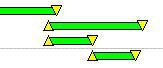
Set the Actual Start by moving the mouse pointer to the start of the activity and a double- headed arrow will be displayed, press the Shift key to display the icon shown below.

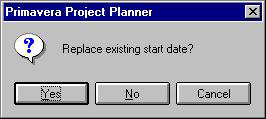
Click with the left mouse button and drag the bar to the required Actual Start Date. You will be presented with this form:

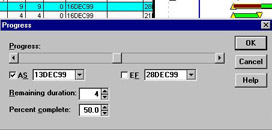
Click on Yes and you will be presented with the Progress form:

You may mark up the Percent Complete using the slide or typing in the Percent Complete and update the Remaining Duration. As the percentage is increased the bar will be highlighted, see above.
Follow the same procedure to record the Actual Finish.
You may set the Finish Date with an Expected Finish Date Constraint, and then P3 will calculate the Remaining Duration for you. Therefore, you will not have to status the activity.
The Remaining Duration will have an asterisk by it indicating that P3 has calculated the duration and, therefore, there is a Expected Finish date constraint.
Important When an Expected Finish constraint moves into the past and is not marked as complete with an actual finish, then this error will be noted as in the scheduling report below:
When an expected finish moves into the past the Remaining Duration is set to zero and Quantities to Complete are also...