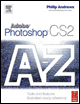
Adobe Photoshop CS2 A - Z: Tools and Features Illustrated Ready Reference
A: Accented Edges Filter Automate, Bridge

Accented Edges Filter Align Linked

Accented Edges filter

  • Menu: Filters>Brush Strokes>Accented Edges

  • Shortcut: Ctrl F

  • Version: 6.0, 7.0, CS, CS2

  • See also: Ink Outlines filter

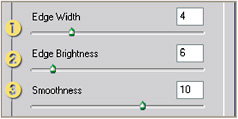
The Accented Edges filter searches out the edges within a picture and then highlights them with a line. The size of the line is controlled by the Edge Width slider (1) in the filter s dialog. The darkness or lightness of the line is determined by the Edge Brightness slider (2). A high value produces a lightly colored edge that appears like chalk and a low value, like the one used in the illustration here, creates an ink-like outline. The Smoothness slider (3) is used to even out the roughness of jagged edges of the line.

Actions

  • Menu: Window>Actions

  • Shortcut: Alt/Opt F9

  • Version: 6.0, 7.0, CS, CS2

  • See also: Batch command, Droplet

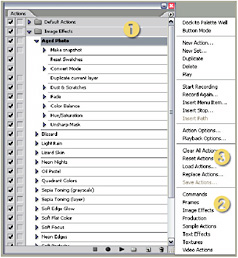
An action is a way of automatically applying a technique to an image using a pre-recorded series of commands. Actions are triggered either by pressing one or a combination of keys or selecting the action from the Actions palette (1). Many actions are already supplied with Photoshop and can be found at the bottom of the Actions menu (2) by clicking on the side-arrow at the top right of the Actions palette.

An action can be as simple as opening a new canvas or as advanced as creating a drop shadow on an existing picture or as in our example making snow.

Ready-made actions can be...

UNLIMITED FREE
ACCESS
TO THE WORLD'S BEST IDEAS

SUBMIT
Already a GlobalSpec user? Log in.

This is embarrasing...

An error occurred while processing the form. Please try again in a few minutes.

Customize Your GlobalSpec Experience

Category: Pressure Sensitive Safety Edges and Safety Bumpers
Finish!
Privacy Policy

This is embarrasing...

An error occurred while processing the form. Please try again in a few minutes.