Adobe Photoshop CS2 A - Z: Tools and Features Illustrated Ready Reference
Menu: Filter>Blur Radial Blur
Shortcut:
Version: 6.0, 7.0, CS, CS2
See also: Filters
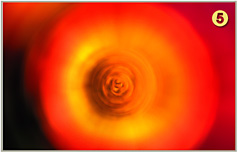
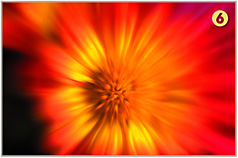
The Radial Blur filter, as one of the group of Blur filters, applies a directional blur to pictures to simulate either spinning or zooming the camera whilst the picture is being taken.
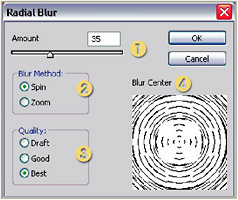
The dialog contains four controls. The Amount slider (1) determines the strength of the effect or the level of blur in the final result.

The Blur Method options (2) allow the user to select between Spin (5) or Zoom (6) type blurs.


The Quality options (3) determine the length of time taken to apply the effect and the level of quality in the final result. The Draft setting produces rough results quickly whereas the Best option creates a higher quality end product but takes more time.
The Blur Center preview (4) not only provides a wire frame preview of the settings, but allows the user to reposition the center of the blur.
Menu:
Shortcut: G
Version: 6.0, 7.0, CS, CS2
See also: Gradients
Photoshop has five different gradient types. All the options gradually change color and tone from one point in the picture to another.
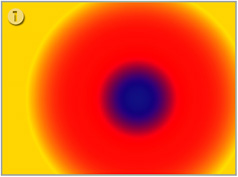
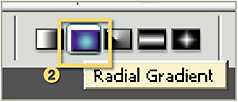
The Radial Gradient (1) changes color from the center of a circle outwards.

To create a gradient start by selecting the tool and the Radial Gradient type (2). Then adjust the controls in the options palette.

Choose the colors from the Gradient Picker...