Adobe Photoshop CS2 A - Z: Tools and Features Illustrated Ready Reference
Menu:
Shortcut: E
Version: 6.0, 7.0, CS, CS2
See also: Erasertool, Background Eraser tool
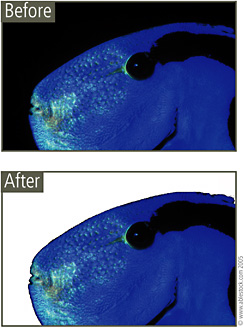
The Magic Eraser selects and then erases pixels of similar tone and color. The tool is great for removing unwanted backgrounds when making composite or montage pictures.

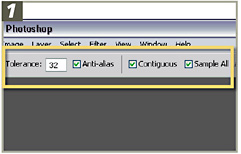
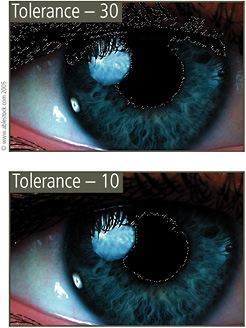
The Tolerance setting determines how alike the pixels need to be before they are erased. High settings will include more pixels of varying shades and colors.
Select the Contiguous option to force the tool to select pixels that are adjacent to each other and choose Sample All Layers if you want to sample the color to be erased from a mixture of all visible layers.


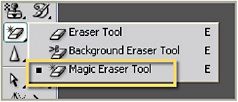
Select the tool from the toolbox. Click the side arrow to reveal hidden tools if the standard eraser is showing. Set the Tolerance, Contiguous and Use Sample Layers settings.

Select the Opacity value: 100% removes all pixels, lower values make the erased area semi-transparent. Click on the layer part you wish to erase.
Menu:
Shortcut: W
Version: 6.0, 7.0, CS, CS2
See also: Color Range
The Magic Wand makes selections based on color and tone. When the user clicks on an image with the Magic Wand tool Photoshop searches the picture for pixels that have a similar color and tone.

How identical a pixel has to be to the original hue selected is determined by the Tolerance value (1) in the options bar. The higher...