Adobe Photoshop CS2 A - Z: Tools and Features Illustrated Ready Reference
Menu: Edit>Transform>Warp
Shortcut:
Version: CS2
See also: Transform again
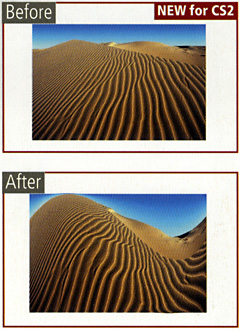
The Warp feature is a new image transformation option that makes its debut in CS2. Using this feature it is possible to distort an image layer in similar ways that the Warp Text option manipulates text layers.
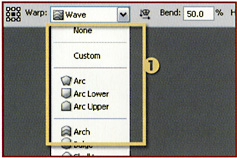
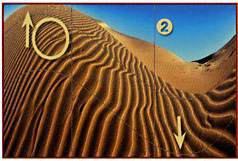
Select the layer to warp and then choose the Warp type from the preset entries in the drop-down menu in the tool s options bar (1). Alternatively you can select the Custom option and then interactively push and pull the warp grid (2) to manipulate the picture yourself.


Menu:
Shortcut: T
Version: 6.0, 7.0, CS, CS2
See also: Type
One of the special features of the Photoshop type system is the Warping option.
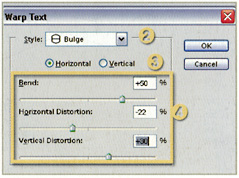
This tool forces text to distort to one of a range of shapes. An individual word, or even whole sentences, can be made to curve, bulge or even simulate the effect of a fish-eye lens.
The button (1) for the option is found on the options bar of the Type tool. The feature s dialog contains a drop-down menu list of styles (2) and a choice between vertical and horizontal warping (3). The strength and style of the effect can be controlled by manipulating the bend, horizontal and vertical distortion sliders (4).


This feature is particularly useful when creating graphic headings for posters or web pages.

Menu: Filter>Distort>Liquify
Shortcut: W (in Liquify)
Version: 6.0,...