Adobe Photoshop CS2 A - Z: Tools and Features Illustrated Ready Reference
Menu:
Shortcut:
Version: 6.0, 7.0, CS, CS2
See also: Faux fonts
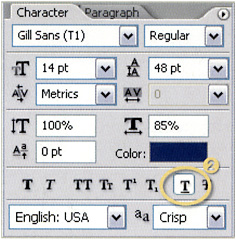
The Type tool s Underline option draws a straight line below the group of letters it is applied to (1). The thickness and color of the line are determined by the current font size and color.

To add an underline to existing text, start by selecting the letters (click-drag the type cursor over the letter group) and then press the Underline button in the Character palette (Window>Character).
To create underline text from the very first letter you input, select the Type tool and then press the Underline option in the Character palette (2). Next click onto the canvas surface and add the text as normal.

Menu: Filter>Artistic>Underpainting
Shortcut:
Version: 6.0, 7.0, CS, CS2
See also: Filters
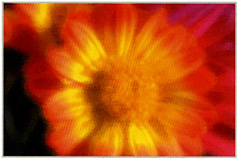
The Underpainting filter, as one of the group of Artistic filters, adds both texture and brush stroke effects to the photo.

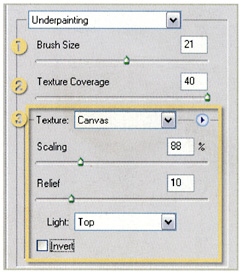
The dialog contains several controls that adjust the painting and texture effects. The top slider, Brush Size (1), alters the broadness of the brush stroke used to paint the picture. The Texture Coverage slider (2) controls how much of the picture the texture is applied to.

Texture options are provided in the bottom section of the dialog (3). The Texture and Light drop-down menus found here, along with the Scaling and Relief sliders, determine the type and strength of the underlying texture effect.
Menu: Edit>Undo...