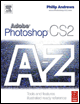
Adobe Photoshop CS2 A - Z: Tools and Features Illustrated Ready Reference
S: Sample All Layers Swatches palette

Sample All Layers Save for Web

Sample All Layers

  • Menu:

  • Version: CS2

  • Shortcut:

  • See also: Brush tool

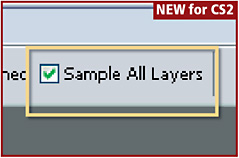
Previously called Use All Layers, this setting is found in the options bar of the Clone Stamp, Smudge, Blur, Sharpen, Paint Bucket and Healing Brush tools. It allows the user to select a sample area based on all visible layers not just the contents of the selected layer.

In CS2 the Sample All Layers replaces the Use All Layers name. This setting still resides on the options bar of the tools with which it can be used.

Sample Size, Eyedropper tool

  • Menu:

  • Shortcut:

  • Version: 6.0, 7.0, CS, CS2

  • See also: Info palette

The Eyedropper tool samples the color of an area in an open image or on the desktop. When the mouse button is clicked the color of the area under the pointer is stored as the new foreground color.

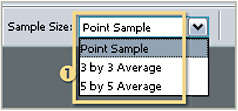
The size of the sample area can be set in the tool s options bar (1). The Point Sample copies the precise color of the pixel beneath the cursor whereas the 3 by 3 or 5 by 5 options store a color that is the average of the pixels contained in these sample

Saturation

  • Menu:

  • Shortcut:

  • Version: 6.0, 7.0, CS, CS2

  • See also: Hue/Saturation, Remove all color Desaturate

The saturation of a color photo is usually described as the color s strength or vibrancy.

Decreasing the saturation in a picture gradually removes the color from the...

UNLIMITED FREE
ACCESS
TO THE WORLD'S BEST IDEAS

SUBMIT
Already a GlobalSpec user? Log in.

This is embarrasing...

An error occurred while processing the form. Please try again in a few minutes.

Customize Your GlobalSpec Experience

Category: Color Swatches and Reference Systems
Finish!
Privacy Policy

This is embarrasing...

An error occurred while processing the form. Please try again in a few minutes.