Adobe Photoshop CS2 A - Z: Tools and Features Illustrated Ready Reference
Menu:
Shortcut:
Version: 7.0, CS, CS2
See also: Selections
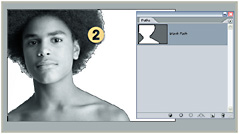
Puts an invisible path (2) around an image to ensure the background is transparent when the image is dropped into an illustration or desktop publishing page.

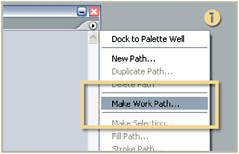
To create a clipping path, first outline the subject with a selection tool such as the Lasso or Magic Wand tools to make a selection then click on the arrow at the right of the Paths palette and select Make Work Path (1), then Save Path. Finally select Clipping Path.

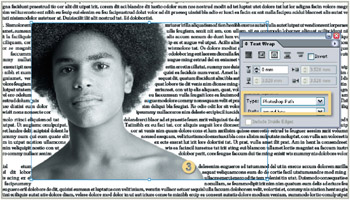
Save the file as an EPS or TIFF which keeps the clipping path data which can then be read by the DTP software to allow a transparent background or text to wrap around the subject (3).

Just like layers and channels, actions for manipulating paths are centered around a single palette the Paths palette which can be displayed by selecting the Paths option from the Windows menu.
Menu:
Shortcut: S
Version: 6.0, 7.0, CS, CS2
See also: Pattern Stamp, Spot Healing Brush, Healing Brush, Patch tool
Scanning your prints or negatives is a great way to convert existing pictures into digital, but sometimes during the process you pick up a few unwanted dust marks as well as the picture details.

Or maybe when you photographed your mother you did not realize that the electricity pole in the background would look like it is protruding from her head in your...