Adobe Photoshop CS2 A - Z: Tools and Features Illustrated Ready Reference
Menu:
Shortcut:
Version: 6.0, 7.0, CS, CS2
See also: Canvas Size
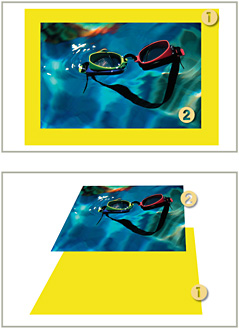
In creating documents in Photoshop the program makes a distinction between the canvas (1), upon which pictures and other content are placed, and the image content (2) itself. This is true even for photos with one layer only. For most newly imported photos the canvas and image size are exactly the same and so the canvas remains hidden from view.

Given this distinction, it is possible to resize, alter the format or change the color of the canvas without affecting the image at all.
Menu: Image>Canvas Size
Shortcut: Ctrl/Cmd Alt/Opt C
Version: 6.0, 7.0, CS, CS2
See also: Image Size command
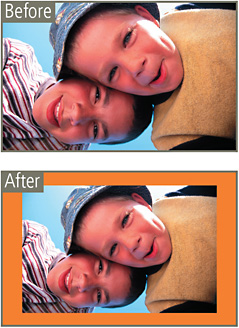
Altering the settings in the Canvas Size dialog changes the dimensions of the background the image is sitting upon. Larger dimensions than the picture result in more space around the image. Smaller dimensions crop the image.

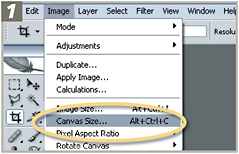
To change the canvas size, select Canvas Size from the Image menu and alter the settings in the New Size section of the dialog.
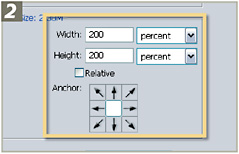
You can control the location of the new space in relation to the original image by clicking one of the sections in the Anchor diagram. Leaving the default setting here will mean that the canvas change will be spread evenly around the image.

With the picture already open in the Photoshop workspace select Image>Canvas Size.

In the Canvas Size dialog add in the new values for...