Adobe Photoshop CS2 A - Z: Tools and Features Illustrated Ready Reference
G: Gamut Warning Guides, Smart

Gamut Warning Gradient Map Adjustment Layer

Gamut Warning

  • Menu: View>Gamut Warning

  • Shortcut: Ctrl/Cmd Shft Y

  • Version: 6.0, 7.0, CS, CS2

  • See also: Print Space

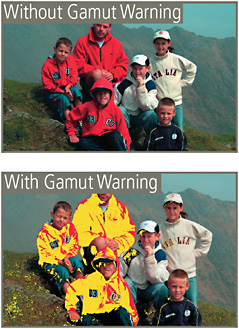
The range of colors a computer monitor can display is known as the gamut and the monitor s gamut has a different range of colors than an inkjet printer can often output. The Photoshop Gamut Warning feature (View>Gamut Warning) shows when the colors on screen are outside of the printer s capabilities by coloring the problem areas.

The Gamut Warning s job is to prevent disappointment when you work in RGB mode. It does so by highlighting all the pixels that are out of gamut or beyond the capabilities of the printer. With the feature turned on you can adjust the colors in the photo until no warning appears and therefore be assured that the colors you see on screen will print.

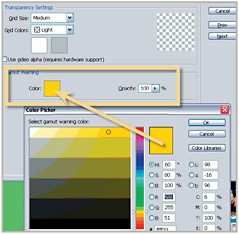
To adjust the color used for the warning go to Edit>Preferences>Transparency & Gamut.

Gaussian Blur Filter

Menu: Editor: Filter>Blur>Gaussian Blur

Shortcut:

Version: 6.0, 7.0, CS, CS2

See also: Blur filters

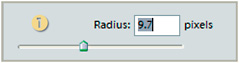
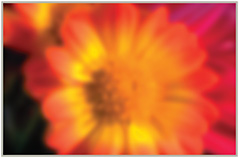
The Gaussian Blur filter, as one of the group of Blur filters, softens the look of photos, producing a blur effect that is similar to out of focus pictures.

This filter is often used to blur the background of photographs, producing an artificial shallow depth of field effect. To reproduce these results select the area to be blurred first and then apply the filter.

Unlike the Blur and Blur More...

UNLIMITED FREE
ACCESS
TO THE WORLD'S BEST IDEAS

SUBMIT
Already a GlobalSpec user? Log in.

This is embarrasing...

An error occurred while processing the form. Please try again in a few minutes.

Customize Your GlobalSpec Experience

Category: Warning Lights
Finish!
Privacy Policy

This is embarrasing...

An error occurred while processing the form. Please try again in a few minutes.