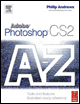
Adobe Photoshop CS2 A - Z: Tools and Features Illustrated Ready Reference
J: JPEG artifact removal Jump to

JPEG artifact removal Jump to

JPEG artifact removal

  • Menu: Filter>Noise>Reduce Noise

  • Shortcut: -

  • Version: CS2

  • See also: Reduce Noise filter

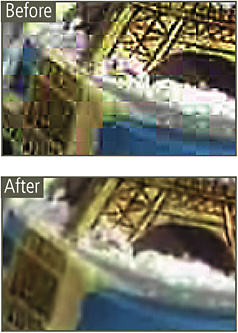
One feature of the new Reduce Noise filter is the option to smooth out the box-like appearance of JPEG artifacts.

One of the side effects of saving space by compressing files using the JPEG format is the creation of box-like patterns in your pictures. These patterns or artifacts are particularly noticeable in images that have been saved with maximum compression settings.

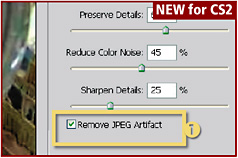
With the Remove JPEG Artifact option (1) selected in the Reduce Noise dialog, Photoshop smooths out the box-like pattern created by the overcompression.

JPEG format

  • Menu: File>Save As, File Save for Web

  • Shortcut: Shft Ctrl/Cmd S Alt/Opt Shft Ctrl/Cmd S

  • Version: 6.0, 7.0, CS, CS2

  • See also: Save for Web

JPEG is a file format designed by the Joint Photographic Experts Group to use with pictures destined for the web or e-mail.

This format provides high levels of compression for photographic images. For instance, a 20 Mb digital file can be compressed in the JPEG format so that it can be e-mailed quickly and easily to any where in the world.

To achieve this level of compression the format uses a lossy compression system, which means that some of the image information is lost during the compression process.

In Photoshop, pictures can be saved in the JPEG format via dialogs in the Save As or Save for Web commands. The amount of compression...

UNLIMITED FREE
ACCESS
TO THE WORLD'S BEST IDEAS

SUBMIT
Already a GlobalSpec user? Log in.

This is embarrasing...

An error occurred while processing the form. Please try again in a few minutes.

Customize Your GlobalSpec Experience

Category: Graphics Software
Finish!
Privacy Policy

This is embarrasing...

An error occurred while processing the form. Please try again in a few minutes.