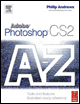
Adobe Photoshop CS2 A - Z: Tools and Features Illustrated Ready Reference
P: Page Setup Purge

Page Setup Panoramas, creating

Page Setup

  • Menu: File > Page Setup

  • Shortcut: Ctrl/Cmd Shft P

  • Version: 6.0, 7.0, CS, CS2

  • See also: Print options

The Page Setup dialog, in conjunction with the Print and the Print Multiple Photos dialogs, controls all the printing options from Photoshop.

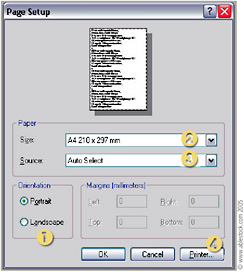
Here you can change the orientation of the paper that you are printing on Portrait is vertical and Landscape is horizontal (1).

Page Setup also provides options to input values for the paper Size (2) and paper Source (3), which are both determined by the printer that is currently selected.

If you wish to change printers, then clicking the Printer button (4) will take you to a second dialog, where you can select another printer that is installed and connected to your computer.

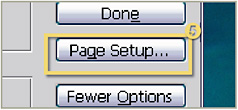
The Page Setup dialog can also be accessed via the button at the top right of the Print dialog (5) that is displayed when selecting File > Print with Preview.

Paint Bucket tool

  • Menu:

  • Shortcut: G

  • Version: 6.0, 7.0, CS, CS2

  • See also: Magic Wand tool

The Paint Bucket tool is grouped with the Gradient tool in the Photoshop toolbar (4).

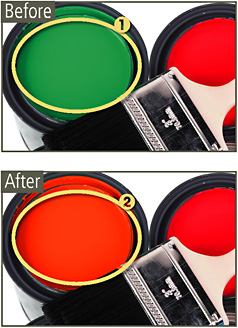
The feature combines the selecting prowess of the Magic Wand and the coloring abilities of the Fill command to create a tool that fills all pixels of a similar color (1) with the current foreground color (2).

If the Contiguous option is selected then the pixels that will be filled must be adjacent to one...

UNLIMITED FREE
ACCESS
TO THE WORLD'S BEST IDEAS

SUBMIT
Already a GlobalSpec user? Log in.

This is embarrasing...

An error occurred while processing the form. Please try again in a few minutes.

Customize Your GlobalSpec Experience

Category: Printer Mechanisms
Finish!
Privacy Policy

This is embarrasing...

An error occurred while processing the form. Please try again in a few minutes.