Adobe Photoshop CS2 A - Z: Tools and Features Illustrated Ready Reference
Color Replacement tool Constrain Proportions

Color Replacement tool

  • Menu:

  • Shortcut: J

  • Version: 7.0, CS, CS2

  • See also: Color Range

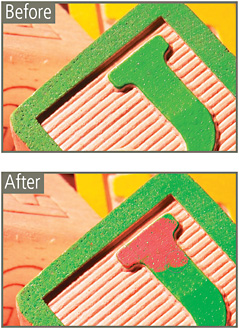
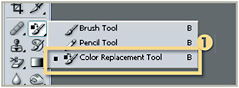
The Color Replacement tool appears as the third option under the Brush and Pencil tools (1) in the Photoshop CS2 toolbar. This feature is used to replace the color in the photograph with the current foreground color and acts like a paintbrush that changes the color.

If you set the foreground color to black and the mode to hue it acts like a desaturation brush. You could previously do this by changing a photo from color to grayscale and then back to color, setting the History to the grayscale state and painting in with the History brush. Using the Color Replacement tool is a much quicker way.

It goes one stage further by working like the Magic eraser where it only replaces the color of pixels within the same tolerance range as the first sampled point.

Color Sampler tool

  • Menu:

  • Shortcut: I

  • Version: 6.0, 7.0, CS, CS2

  • See also: Eyedropper tool

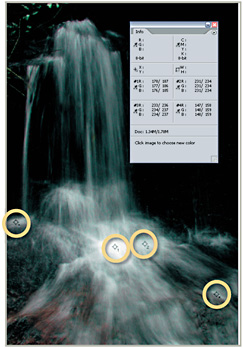
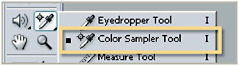
An Eyedropper tool that is used to place one or several sample points on the photo so you can compare color and density of each spot using measurements displayed in the Info palette.

A second set of measurements appears at the side of the current values, showing the adjustments you make when using controls such as levels, curves, contrast and brightness. In this example I placed four samples in the highlight areas of...

UNLIMITED FREE
ACCESS
TO THE WORLD'S BEST IDEAS

SUBMIT
Already a GlobalSpec user? Log in.

This is embarrasing...

An error occurred while processing the form. Please try again in a few minutes.

Customize Your GlobalSpec Experience

Category: Color Meters and Appearance Instruments
Finish!
Privacy Policy

This is embarrasing...

An error occurred while processing the form. Please try again in a few minutes.