Adobe Photoshop CS2 A - Z: Tools and Features Illustrated Ready Reference
V: Vanishing Point filter Vivid Light blending mode

Vanishing Point filter Variable Data Sets, define

Vanishing Point filter

  • Menu: Filter>Vanishing Point

  • Shortcut: Ctrl/Cmd Alt/Opt V

  • Version: CS2

  • See also:

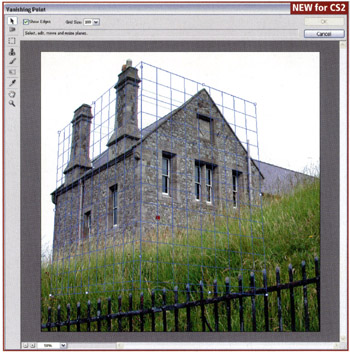
The Vanishing Point filter is a new addition to the specialist filter line-up that includes Extract, Lens Blur and Liquify. Like the others, the feature has its own dialog complete with preview image, toolbox and options bar. The filter allows the user to copy and paste and even Clone Stamp portions of a picture whilst maintaining the perspective of the original scene. Using the filter is a two-step process:

Define perspective planes

To start, you must define the perspective planes in the photo. This is achieved by selecting the Create Plane tool and marking each of the four corners of the rectangular-shaped feature that sits in perspective on the plane. A blue grid means that it is correct perspective, yellow that it is borderline, and red that it is mathematically impossible. In the example, the four corners of a window were used to define the plane of the building s front face. Next, a second plane that is linked to the first at an edge is dragged onto the surface of the left side wall.

Copy and Paste or Stamp

With the planes established the Marquee tool can be used to select image parts which can be copied, pasted and then dragged in perspective around an individual plane and even onto another linked plane. All the time the perspective of the copy will alter to suit the plane...

UNLIMITED FREE
ACCESS
TO THE WORLD'S BEST IDEAS

SUBMIT
Already a GlobalSpec user? Log in.

This is embarrasing...

An error occurred while processing the form. Please try again in a few minutes.

Customize Your GlobalSpec Experience

Category: Planing Tools
Finish!
Privacy Policy

This is embarrasing...

An error occurred while processing the form. Please try again in a few minutes.