Beginning AutoCAD 2006

Placing emphasis on learning by doing, this step-by-step guide provides a detailed exploration of AutoCAD functions required at each stage of producing a 2D drawing.
 TABLE OF CONTENTS
 In this chapter, we will investigate the graphics screen and the user-interface. We will also discuss some of the basic AutoCAD terminology.
AutoCAD 2006 is started:
from the Windows 'Start screen' with a double left-click on the AutoCAD 2006 icon
by selecting the windows taskbar sequence:
Start-Programs-AutoCAD 2006-AutoCAD 2006 (or similar).
Both methods will briefly display the AutoCAD 2006 logo and then:
| either | a the actual graphics screen |
| or | b the Startup dialogue box. |
If the Startup dialogue box is displayed, then select Cancel at present. This will allow the user access to the graphics screen. We will discuss the Startup dialogue box later in this chapter.
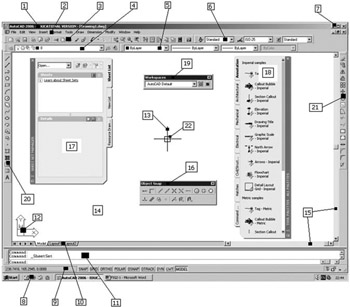
Figure 2.1 displays the basic AutoCAD 2006 graphics screen. Your screen may differ slightly, but the general layout will be the same. The numbered items are:
The AutoCAD title bar
The graphic screen menu bar
The Standard toolbar
The Layer information toolbar
The Properties toolbar
The Text Styles toolbar
The standard 'windows buttons'
The Windows taskbar
The Status bar
The Layout tabs
The Command prompt window area
The Co-ordinate system icon
The on-screen cursor
The Drawing area
Scroll bars at right and bottom of drawing area
The Object Snap toolbar (floating)
The Sheet Set Manager palette
The Tool palette
The Workspaces toolbar (floating)
The Draw toolbar (docked)
The Modify toolbar (docked)
The Grips/Pickfirst boxes
The title bar is positioned at the top of the screen and...