Beginning AutoCAD 2006

Placing emphasis on learning by doing, this step-by-step guide provides a detailed exploration of AutoCAD functions required at each stage of producing a 2D drawing.
 TABLE OF CONTENTS
 The lines and circles drawn so far have been created by co-ordinate input.
While this is the basic method of creating objects, it is often desirable to 'reference' existing objects already displayed on the screen, e.g. we may want to:
draw a circle with its centre at the midpoint of an existing line
draw a line, from a circle centre perpendicular to another line.
These types of operations are achieved using the object snap modes (referred to as OSNAP) and are one of the most useful (and powerful) draughting aids.
Object snap modes are used transparently (used whilst in a command) and can be activated:
from the Object Snap toolbar
by direct keyboard entry.
The toolbar method is quicker and easier to use and will be the only method which will be considered.
Open your C:\MYCAD\DEMODRG drawing of the squares and circles.
Referring to Figure 7.2, erase:
squares: S6, S7, S8
circles: C2, C3, C6, C7, C8.
Display the Draw, Modify and Object Snap toolbars and position them to suit.
Now refer to Figure 8.1.
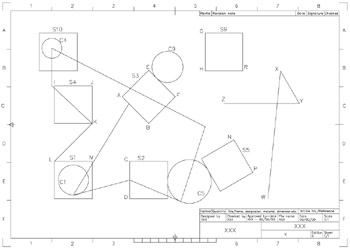
Figure 8.1: Using Object Snap to draw line and circle objects.
Several line segments will be created all using a different object snap mode, so activate the LINE command and:
| prompt | Specify first point |
| respond | pick the Snap to Nearest icon |
| prompt | nea to |
| respond |
|