Beginning AutoCAD 2006

Placing emphasis on learning by doing, this step-by-step guide provides a detailed exploration of AutoCAD functions required at each stage of producing a 2D drawing.
 TABLE OF CONTENTS
 All drawn objects have properties, e.g. linetype, colour, layer, position, lineweight, etc.
Text has properties such as height, style, width factor, obliquing angle, etc.
Object properties can be changed using the:
command line CHANGE command
Properties palette.
Open A3PAPER with layer OUT current, toolbars to suit and refer to Figure 23.1.
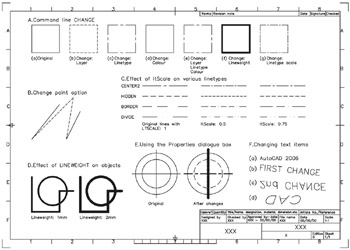
Figure 23.1: Changing object properties exercise.
Draw a 40-unit square and copy it to six other parts of the screen.
At the command line enter LTSCALE
| prompt | Enter new linetype scale factor |
| enter | 1 |
At the command line enter LWDISPLAY
| prompt | Enter new value for LWDISPLAY |
| enter | ON |
At the command line enter CHANGE
| prompt | Select objects |
| respond | window the second square then right-click |
| prompt | Specify change point or [Properties] |
| enter | P |
| prompt | Enter property to change[Color/Elev/LAyer/LType/ltScale/ LWeight/Thickness/PLotstyle] |
| enter | LA |
| prompt | Enter new layer name |
| enter | HID |
| prompt | Enter property to change, i.e. any more property changes |
| respond | right click-Enter. |
The square will be displayed as brown hidden lines Figure 23.1A(b)
Repeat the CHANGE command line entry and:
objects: window the third square then right-click
change point or properties: enter P
options: enter LT
new linetype: enter CENTER2
options: right-click/Enter to end command.
The square will be displayed with red center lines Figure 23.1A(c).
Use the command line CHANGE with: