Beginning AutoCAD 2006

Placing emphasis on learning by doing, this step-by-step guide provides a detailed exploration of AutoCAD functions required at each stage of producing a 2D drawing.
 TABLE OF CONTENTS
 In this chapter we will investigate how to:
draw and erase lines and circles
use the selection set a very powerful user aid when modifying a drawing.
Start AutoCAD and:
| prompt | Startup dialogue box with four selections: |
| Open a Drawing; Start from Scratch; Use a Template; Use a Wizard | |
| respond | pick Use a Wizard icon (right-most icon) |
| prompt | Startup Use a Wizard dialogue box |
| respond |
|
| prompt | Quick Setup (Units) dialogue box |
| respond |
|
| prompt | Quick Setup (Area) dialogue box |
| respond |
|
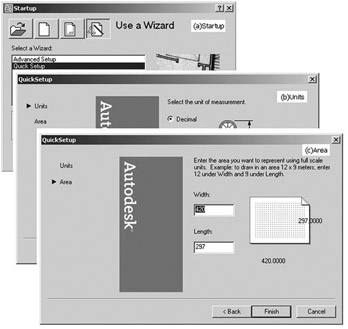
Figure 3.1: The Use a Wizard startup with (a) Quick Setup (b) Units and (c) Area dialogue boxes.
A blank AutoCAD 2006 drawing screen should be returned with the Standard, Layers, Properties and Styles toolbars at the top of the screen, and the docked Modify and Draw toolbars.
Notes:
The toolbars which are displayed will depend on how the last user 'left the system'. If you do not have the Draw and Modify toolbars displayed then:
right-click in any displayed toolbar
activate the Draw and Modify toolbars with a mouse left-pick
position the toolbars to suit, i.e. floating or docked.
After selecting options from the Startup dialogue box, the New Features Workshop screen may be displayed. The user should read the options, decide on which should remain active, then close the...