Beginning AutoCAD 2006

Placing emphasis on learning by doing, this step-by-step guide provides a detailed exploration of AutoCAD functions required at each stage of producing a 2D drawing.
 TABLE OF CONTENTS
 When text is being added to a drawing, it may be necessary to underline the text item, or add diameter/degree symbol.
AutoCAD has several control codes which when used with the Single Line Text command will allow underscoring, overscoring and symbol insertion.
The available control codes are:
| %%O | toggles the OVERSCORE on/off |
| %%U | toggles the UNDERSCORE on/off |
| %%D | the DEGREE symbol for angle or temperature( ) |
| %%C | the DIAMETER symbol ( ) |
| %%P | the PLUS/MINUS symbol ( ) |
| %%% | the PERCENTAGE symbol (%). |
Close all existing drawings then open your A3PAPER standard sheet with layer TEXT current.
Refer to Figure 13.5, menu bar with Draw-Text-Single Line Text and:
| prompt | Specify start point of text or [Justify/Style] |
| enter | S |
| prompt | Enter style name or [?] |
| enter | ST1 |
| prompt | Specify start point of text and enter 25,250 |
| prompt | Specify height and enter 15 |
| prompt | Specify rotation angle of text and enter 5 |
| enter | %%UAutoCAD 2006%%U |
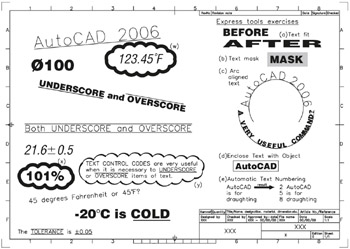
Figure 13.5: Using text control codes and Express Menu text.
At the command line enter DTEXT
style: ST2
start point: 130,230
height, angle: 10,0
text: 123.45%%DF.
Activate the single line text command and:
style: ST3
start point: 30,200
height, angle: 8, 10
text: %%UUNDERSCORE%%U and %%OOVERSCORE%%O.
With the single line text command:
style: ST3
start point: 20,220
height, angle: 15,0
text: %%C100.
Refer to Figure 13.5 and add the other text items. The text style used is at your discretion.
Note: Later in the chapter...