Beginning AutoCAD 2006

Placing emphasis on learning by doing, this step-by-step guide provides a detailed exploration of AutoCAD functions required at each stage of producing a 2D drawing.
 TABLE OF CONTENTS
 AutoCAD 2006 allows multiple drawings to be opened during a drawing session. It is thus essential that all users know how to save and open a drawing, and how to exit AutoCAD correctly. In this and all the following chapters, all drawing work will be saved to the named folder MYCAD.
If the previous chapter work has been followed correctly, the user has three drawings opened:
line segments drawn using the Dynamic Input drawing aid
line segments drawn using the Polar Tracking drawing aid
the HELP 2D LINES.
Menu bar with File-Exit and:
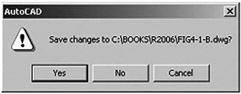
| prompt | AutoCAD message box similar to Figure 5.1.
|
This dialogue box is informing the user that since starting the current drawing session, changes have been made and that these have drawing changes not yet been saved. The user has to respond to one of the three options which are:
| Yes | picking this option will save a drawing with the name displayed, i.e. Drawing1.dwg or similar |
| No | selecting this option means that the alterations made will not be saved |
| Cancel | returns the user to the drawing screen. |
At present, pick Cancel as we want to investigate how to save a drawing.
Select from the menu bar File-Save As and:
| prompt | Save Drawing As dialogue box |
| respond |
|