Beginning AutoCAD 2006

Placing emphasis on learning by doing, this step-by-step guide provides a detailed exploration of AutoCAD functions required at each stage of producing a 2D drawing.
 TABLE OF CONTENTS
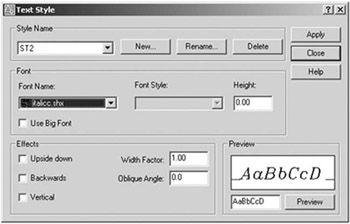
 From the menu bar select Format-Text Style and
| prompt | Text Style dialogue box |
| with |
|
| respond | pick New and: |
| prompt | New Text Style dialogue box |
| respond |
|
| prompt | Text Style dialogue box |
| with | ST2 as the Style Name |
| respond |
|
Now use the Text Style dialogue box to create another text style with:
| a style name and font name: | ST3 and Arial Black |
| b height, width factor and oblique angle: | 0, 1, 0 |
| c backwards, upside-down, vertical: | all OFF. |
using the Text Style dialogue box, scroll at Style Name, pick ST1 then close the dialogue box
save A3PAPER file as both a template and drawing file, updated the existing file
we have now saved the three created text style (ST1, ST2 and ST3) to our A3PAPER standard sheet.