Beginning AutoCAD 2010: Exercise Workbook
After completing this lesson, you will be able to:
Start AutoCAD program
Understand AutoCAD Workspaces
Recognize all of the features in the AutoCAD Window
Use AutoCAD Help
To Start AutoCAD use one of the 2 methods below.
(Be patient it may take a few minutes to load. It is a large program)
Select Start /All Programs/ Autodesk / AutoCAD 2010
or
Double click on the AutoCAD 2010 desktop shortcut icon.
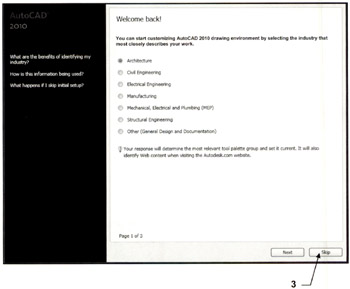
Initial Setup should appear
Initial setup allows you to customize AutoCAD when you start the first time. After responding to a few questions AutoCAD will add a few tools and palettes that are specific to your industry.
You may experiment with after you are more familiar with AutoCAD. For now I would like you to select Skip.
You may return to Initial Setup any time by selecting Options / User Preferences tab Refer to page Intro-5
Select the Skip button.

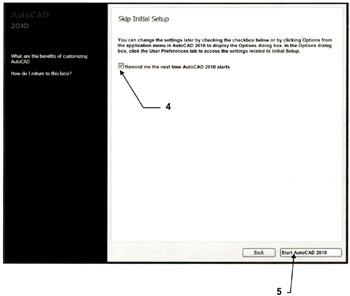
Skip Initial Setup should appear
Select the
Remind me the next time AutoCAD 2010 starts.
Select Start AutoCAD 2010 button.

Workspaces controls the display of menus, toolbars, and palettes.
AutoCAD gives you the option of deciding how you would like them displayed.
There are 3 preset Workspaces.
2D Drafting & Annotation (shown on the next page)
This workspace is the default display. It displays the necessary menus, tools and palettes for 2D drafting. We will be using this workspace for all lessons within this...