Beginning AutoCAD 2010: Exercise Workbook
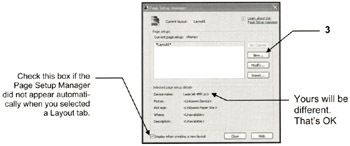
When you select a layout tab for the first time the Page Setup Manager will appear. The Page Setup Manager allows you to select the printer/plotter and paper size. These specifications are called the "Page Setup". This page setup will be saved to that layout tab so it will be available when ever you use that layout tab.
Note: The following is for concept only. The actual exercise starts with 26A.
Open the drawing you wish to plot.
(The drawing must be displayed on the screen.)
Select a Layout tab. (Refer to page 26-3 if you do not have a layout tab)
Note: If the "Page Setup Manager" dialog box shown below does not appear automatically, right click on the Layout tab and select Page Setup Manager.
Select the New button

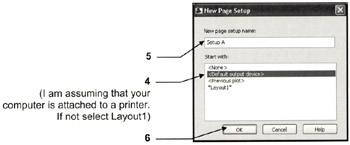
Select
Enter the New page setup name: Setup A
Select OK button.

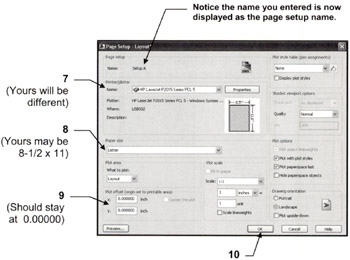
This is where you will select the printer / plotter, paper size and the plot offset.
Select the Printer / Plotter
Note: Your current system printer should already be displayed here. If you prefer another select the down arrow and select from the list. If the preferred printer is not in the list you must configure the printer. Refer to Appendix-A for instructions.)
Select the Paper Size
Select Plot Offset

Select OK button.
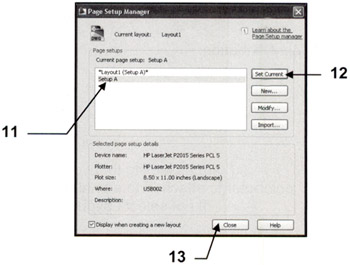
Select the Page Setup.

Select the Set Current