Beginning AutoCAD 2010: Exercise Workbook
Lesson 11

Learning Objectives

After completing this lesson, you will be able to:

  1. Understand the Polar Degree Clock

  2. Draw Lines to a specific length and angle

  3. Draw objects using Polar Coordinate Input

  4. Use Dynamic Input

  5. Use Polar Tracking and Polar Snap

Polar Coordinate Input

In Lesson 9 you learned to control the length and direction of horizontal and vertical lines using Relative Input and Direct Distance Entry. Now you will learn how to control the length and ANGLE of a line using POLAR Coordinate Input ?

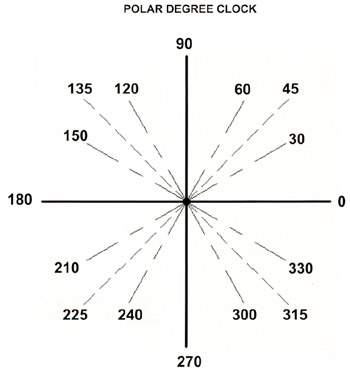
Understanding the "Polar Degree Clock"

Previously when drawing Horizontal and Vertical lines you controlled the direction using a Positive or Negative input. Polar Input is different. The Angle of the line will determine the direction.

For example: If I want to draw a line at a 45 degree angle towards the upper right corner, you would use the angle 45. But if I want to draw a line at a 45 degree angle towards the lower left corner, you would use the angle 225.

You may also use Polar Input for Horizontal and Vertical lines using the angles 0, 90, 180 and 270. No negative input is required.

Drawing with Polar Coordinate Input

When entering polar coordinates the first number represents the Distance and the second number represents the Angle. The two numbers are separated by the less than (<) symbol. The input format is: distance < angle

Note: If you are using Dynamic Input (DYN...

UNLIMITED FREE
ACCESS
TO THE WORLD'S BEST IDEAS

SUBMIT
Already a GlobalSpec user? Log in.

This is embarrasing...

An error occurred while processing the form. Please try again in a few minutes.

Customize Your GlobalSpec Experience

Category: Solid Phase Extraction Cartridges and Disks
Finish!
Privacy Policy

This is embarrasing...

An error occurred while processing the form. Please try again in a few minutes.